 DNS Unpacked
Nameservers: where a domain's answers live
The short version
- A nameserver holds the real DNS records for a domain.
- Every domain is served by at least two of them.
- The level above your domain keeps a pointer to your nameservers. This pointer is called a delegation.
- You choose your nameservers at your registrar.
- Changing nameservers moves all your DNS records to a new place in one go.
Nameservers hold the answers
The DNS is one huge set of records. No single computer holds it all. It is split into pieces, and each piece lives on its own servers.[1]
Each piece is called a zone. For most website owners, the zone is simply their domain. All the records for example.com sit together in the example.com zone.
The servers that hold a zone are its nameservers. People also call them authoritative nameservers. That means they know the answers first-hand. They don't need to ask anyone else.[2]
This is different from the resolver in the last chapter. A resolver goes and fetches answers. A nameserver is where those answers come from.
Always at least two
The standards say every zone must be on at least two servers.[1] If one fails, the other can still answer.
The servers should be in different places on the internet. That way, one problem can't knock them all out.[3]
That is why a host or registrar usually gives you two or more nameserver names. They often look like ns1.example.net and ns2.example.net.
Delegation: pointers from the level above
How does anyone find your nameservers? The level above your domain keeps a note of them.
These notes are called NS records. "NS" stands for name server. An NS record names a server for the zone below.[1]
Adding NS records to the parent zone is called delegation.[2] It hands control of a name down one level. So the parent always knows how to reach its children's servers.[1]
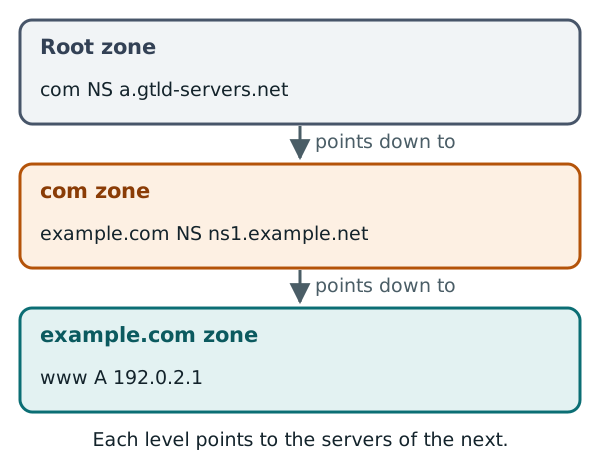
It works like this for www.example.com:
- The root zone has NS records for
com. - The
comzone has NS records forexample.com. - The
example.comzone holds the actual record forwww.
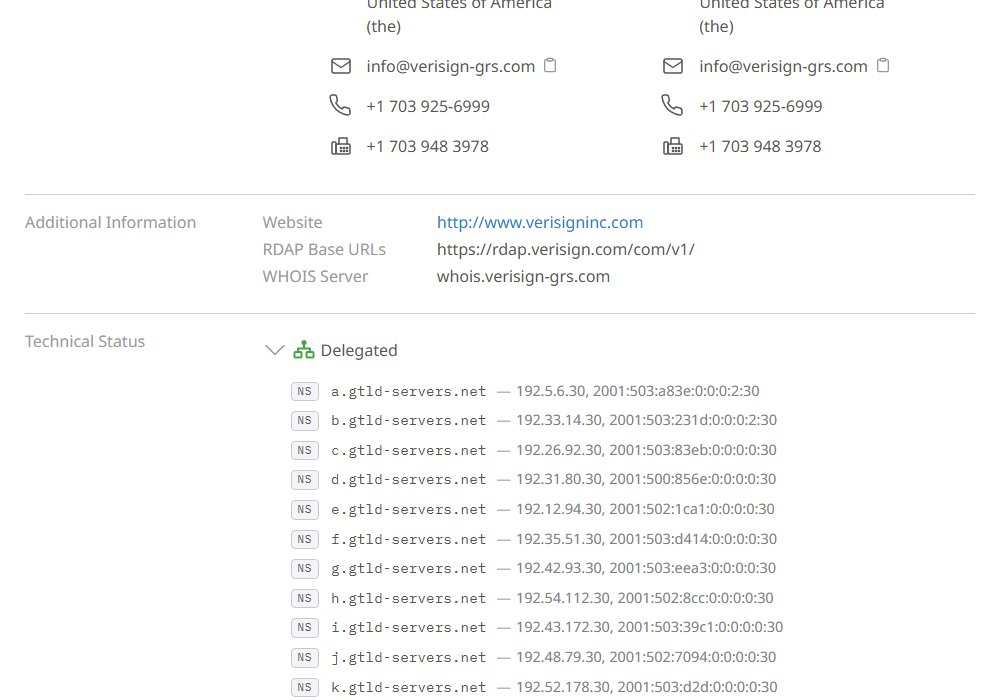
You can see the first step on IANA's website. It lists the nameservers that the root points to for .com.[4] Here are some of them:
Looking up a domain's nameservers
You can check which nameservers a domain uses with a lookup tool. Here is Google's online "Dig" tool, asked for the NS records of example.com:
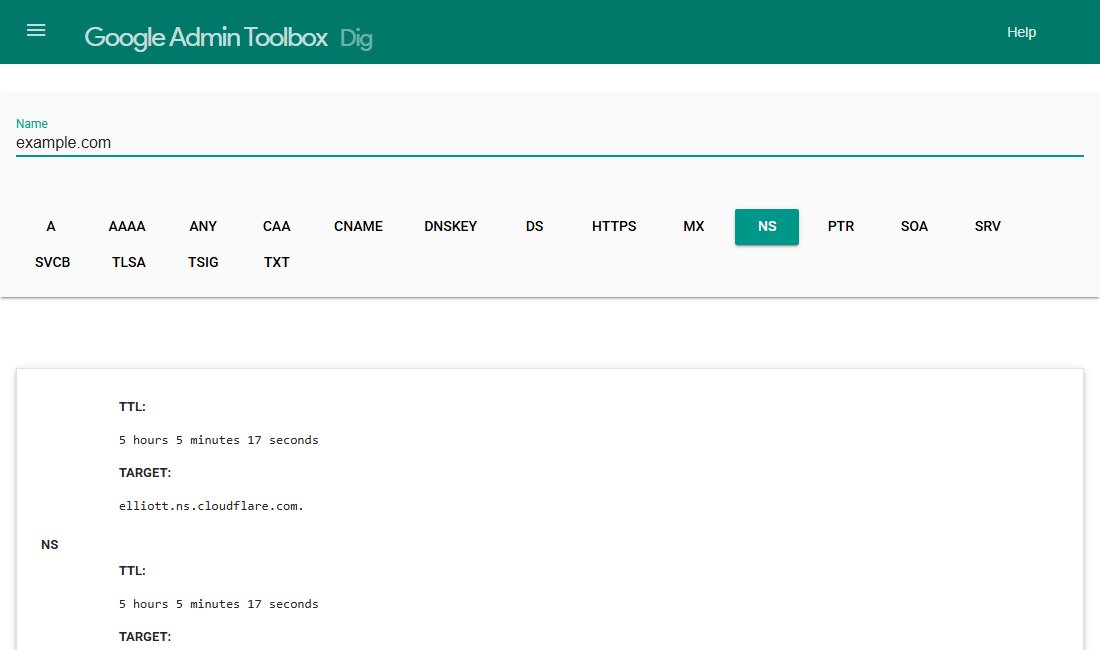
The TARGET lines are the nameserver names. Your own domain should list the nameservers your host or DNS provider gave you.
The same check from a terminal looks like this. The output below is shortened, with example names:
$ dig NS example.com +short
ns1.example.net.
ns2.example.net.
Changing nameservers at your registrar
You manage your domain's settings at your registrar.[5] That includes its nameservers. You normally change them there.[6]
Some website builders also sell domains for a registrar. If you bought your name that way, you may need to change nameservers in the builder's settings instead.[6]
The steps are usually:
- Your new DNS provider gives you two or more nameserver names.
- You log in to your registrar and find the nameserver settings.
- You replace the old names with the new ones and save.
Your registrar deals with the registry for you.[7] The new names end up as NS records in the parent zone, such as com.[2]
What changes when you move
This part catches many people out. Changing nameservers does not move one record. It moves every record at once.
Your website, your email and any other services all rely on records in your zone. Once the new nameservers take over, only the records on the new servers count. Anything you didn't copy across stops working.
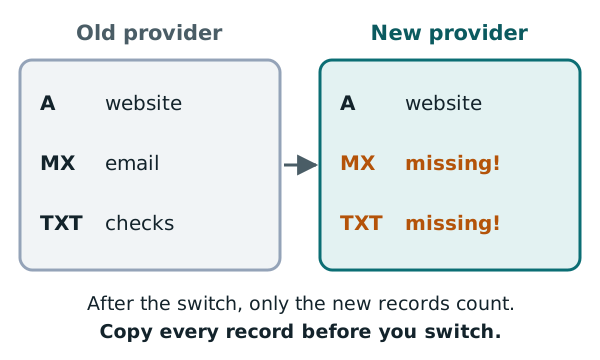
So before you switch:
- Make a list of every record at your current provider.
- Add the same records at the new provider.
- Then change the nameservers.
The change also takes a while to reach everyone. TTL and propagation explains why.
Next: the records themselves
Nameservers hold records. The next chapters look at the main types, starting with A and AAAA records.
Sources
- RFC 1034: Domain names - concepts and facilities, IETF (accessed 2026-10-18)
- RFC 8499: DNS Terminology, IETF (accessed 2026-10-18)
- RFC 2182: Selection and Operation of Secondary DNS Servers, IETF (accessed 2026-10-18)
- .com Top-Level Domain, IANA (accessed 2026-10-18)
- Domain Name Registrants, ICANN (accessed 2026-10-18)
- Update nameservers, Cloudflare DNS docs (accessed 2026-10-18)
- List of Accredited Registrars, ICANN (accessed 2026-10-18)